in-sufficientdata (![[personal profile]](https://www.dreamwidth.org/img/silk/identity/user.png) in_sufficientdata) wrote in
in_sufficientdata) wrote in ![[community profile]](https://www.dreamwidth.org/img/silk/identity/community.png) rp_help2025-04-06 04:26 pm
rp_help2025-04-06 04:26 pm
in_sufficientdata) wrote in rp_help2025-04-06 04:26 pm


Entry tags:
tutorial: joining, tracking, and posting to communities
Before you join a game or other comm on Dreamwidth, you will see the following menu in the navigation strip at the top of the main journal page:

You can find these same options linked on the comm's profile page.
The Join and Subscribe links will take you to the same page, which will look like this:

If the comm has open membership, you will be added automatically when you click the Join button. If not, the mods will have to approve your join request. If you request to join a comm you will receive an email when you are accepted or declined.
Subscribing to the comm will put its posts on that journal's Reading Page. The link for your Reading Page is at the upper right of the settings page, or the upper left on any page that has a navigation strip showing. Using the subscription option is useful if you intend to check Dreamwidth every day and use the reading page.
Tracking the comm will send an email every time a post is made in the comm. Follow the Track link from the Navigation strip and check the box for "Someone posts a new entry in [community name]". Then be sure to hit Save at the bottom.
This is a convenient option if you don't want to visit the comm's front page before starting to write a post. In addition, some games choose to use coding that hides the Navigation strip on the game comms, meaning this will be the only way you can post to the game comms.
This is a drop-down box found below the main composition box.

You can find these same options linked on the comm's profile page.
Joining a comm
The Join and Subscribe links will take you to the same page, which will look like this:
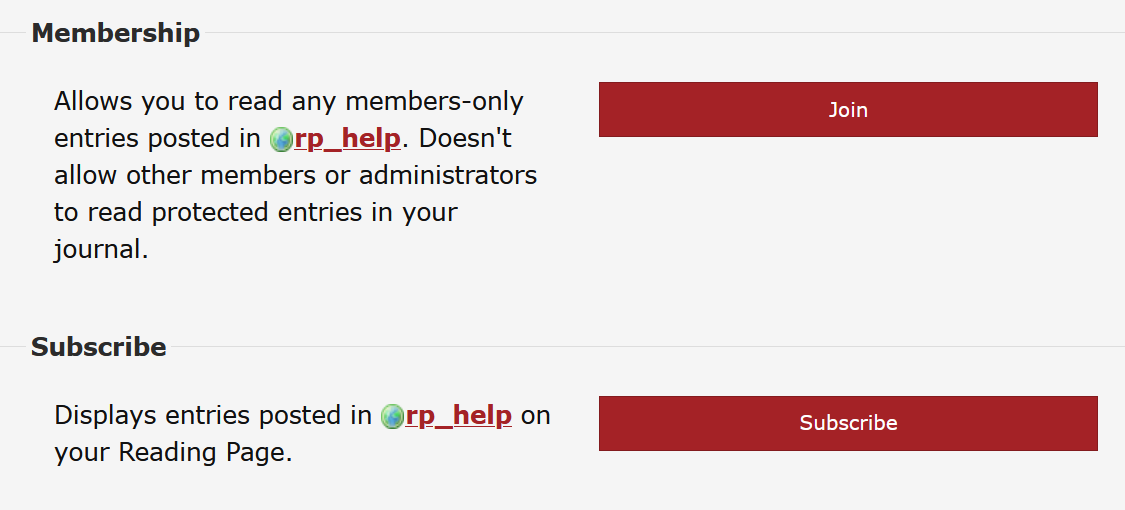
If the comm has open membership, you will be added automatically when you click the Join button. If not, the mods will have to approve your join request. If you request to join a comm you will receive an email when you are accepted or declined.
Subscribing to a comm
Subscribing to the comm will put its posts on that journal's Reading Page. The link for your Reading Page is at the upper right of the settings page, or the upper left on any page that has a navigation strip showing. Using the subscription option is useful if you intend to check Dreamwidth every day and use the reading page.
Tracking a comm
Tracking the comm will send an email every time a post is made in the comm. Follow the Track link from the Navigation strip and check the box for "Someone posts a new entry in [community name]". Then be sure to hit Save at the bottom.
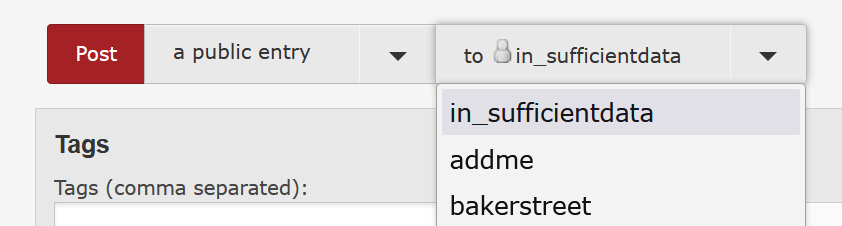
Posting in comms from the beta composer
This is a convenient option if you don't want to visit the comm's front page before starting to write a post. In addition, some games choose to use coding that hides the Navigation strip on the game comms, meaning this will be the only way you can post to the game comms.
This is a drop-down box found below the main composition box.